Notifications & activity
Notifications
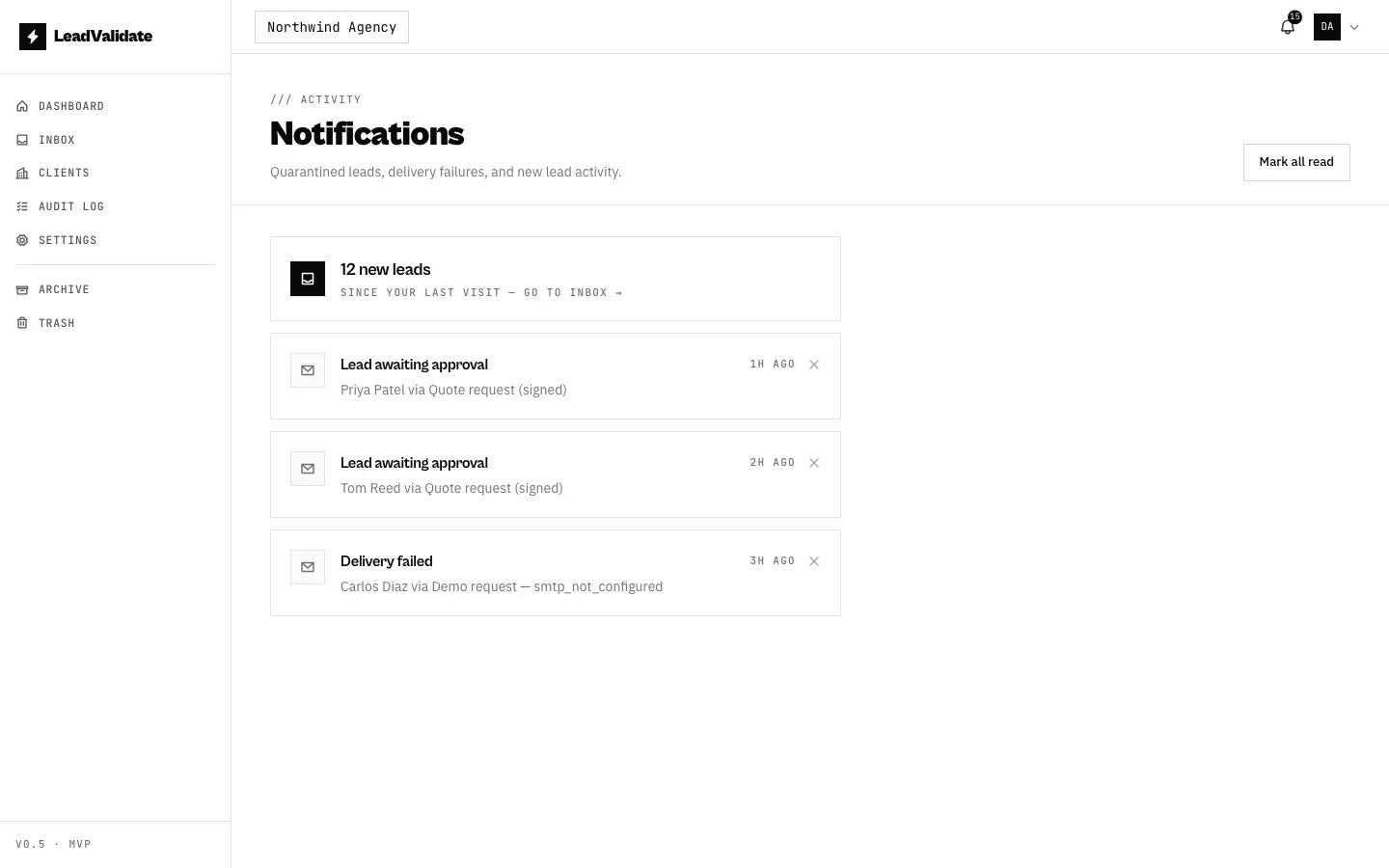
The bell in the top-right header surfaces things that need attention — leads awaiting approval, delivery failures, and other workspace events — with a badge showing your unread count. Click the bell to open the dropdown:
- Click a notification to mark it read (lead-related ones jump you to the Inbox).
- ✕ dismiss removes a notification you don’t care about so it stops nagging.
- Mark all read clears your unread badge in one click.
- A pinned “N new leads since your last visit” item links straight to the Inbox.
- See all → opens the full history page.
Read and dismiss state is per user — marking something read or dismissing it only affects you, not your teammates.
Next to the bell, your avatar menu shows your name, email, and role, with links to Settings and Sign out.
Activity
The Activity page has two tabs:
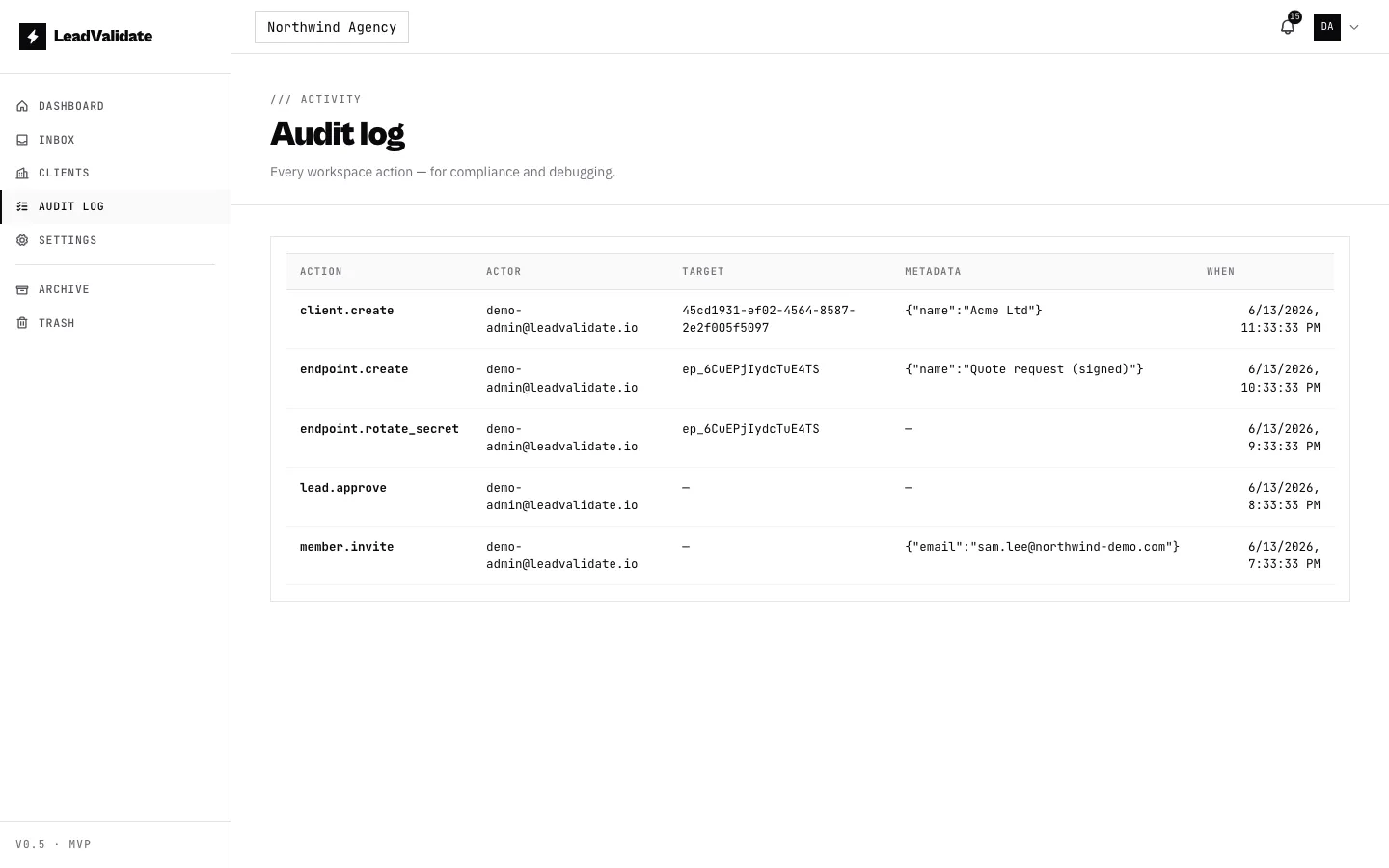
Audit
A record of who did what in the workspace — lead releases/approvals, client and endpoint changes, secret rotations, member changes, and more. Each row shows the name of the thing it concerns (e.g. “John Doe — Contact form”), not a raw ID. Click any row to open a detail panel with the full information, a link to the lead/client/endpoint, and — for lead actions — that lead’s delivery attempts (who it was sent to and what the mail server said).
Deliveries
The outbound-email log: every attempt to send a lead to a client, with the recipient, subject, endpoint, status (sent / failed), and a link to the lead. This is the place to confirm whether a lead actually went out.
Lead delivery uses your workspace’s SMTP settings (Settings → SMTP) — separate from the login emails. If a release isn’t arriving, check here and verify your SMTP with “Send test.”
Keeping it tidy
Owners can purge old audit logs, and owners/admins can purge old delivery logs (older than a chosen number of days, or all), to keep the database lean.